 Ahsan Ali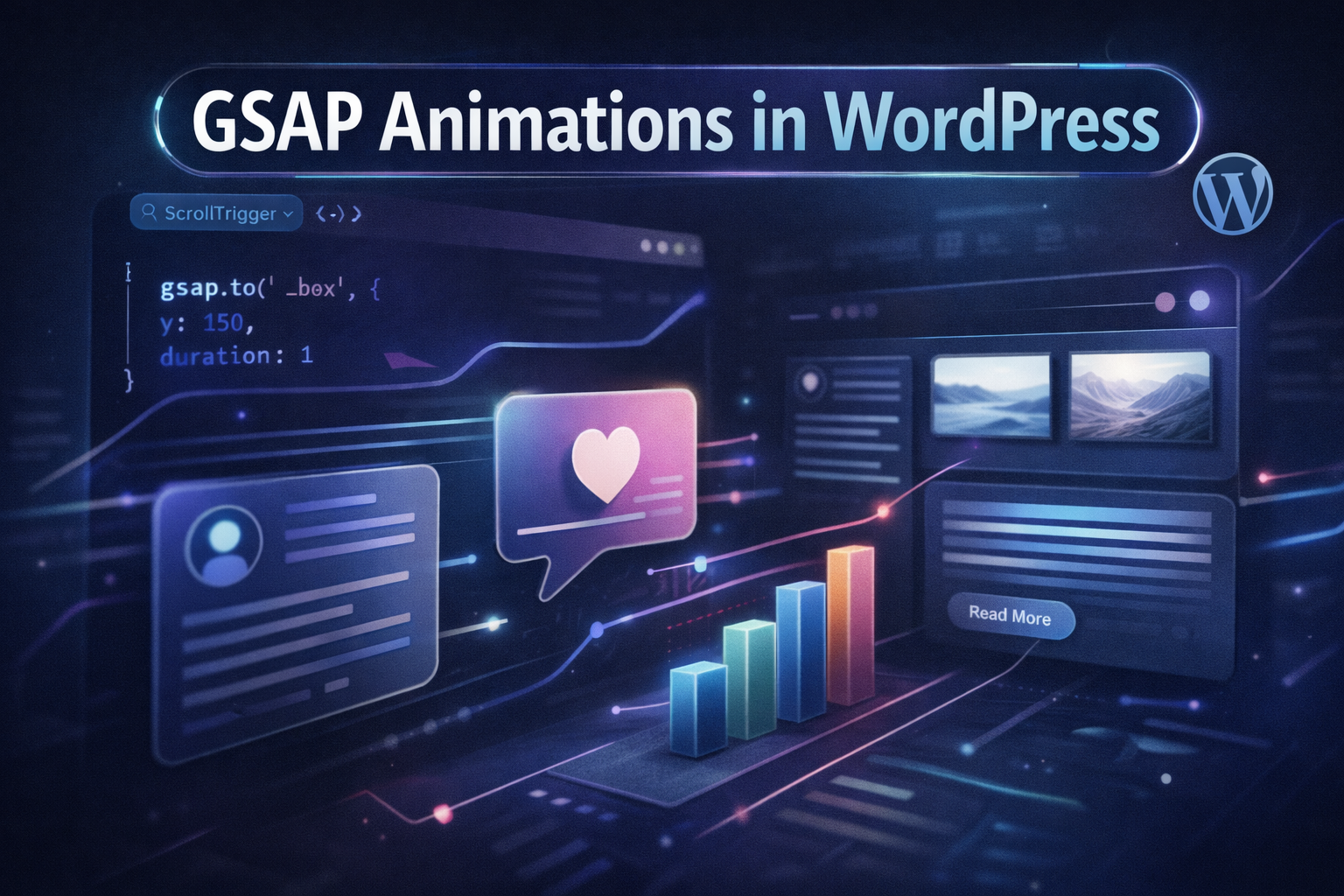
Modern websites are no longer static pages. The difference between a website that feels premium and one that feels outdated often comes down to motion — how elements enter the page, how they respond to scroll, and how interactions feel when users engage with them.
GSAP (GreenSock Animation Platform) is the animation library behind some of the most impressive websites on the internet. It’s used by major brands, award-winning agencies, and developers who need reliable, high-performance animations that work consistently across every browser and device.
This guide covers everything you need to know about using GSAP in WordPress — from adding it to your site for the first time to building advanced scroll-based animations with ScrollTrigger. Whether you’re a developer building custom themes or a designer looking to add motion to an Elementor site, this guide has you covered.
What is GSAP?
GSAP (GreenSock Animation Platform) is a JavaScript animation library that lets you animate virtually any property of any DOM element — position, size, opacity, color, rotation, and much more — with precise control over timing, easing, and sequencing.
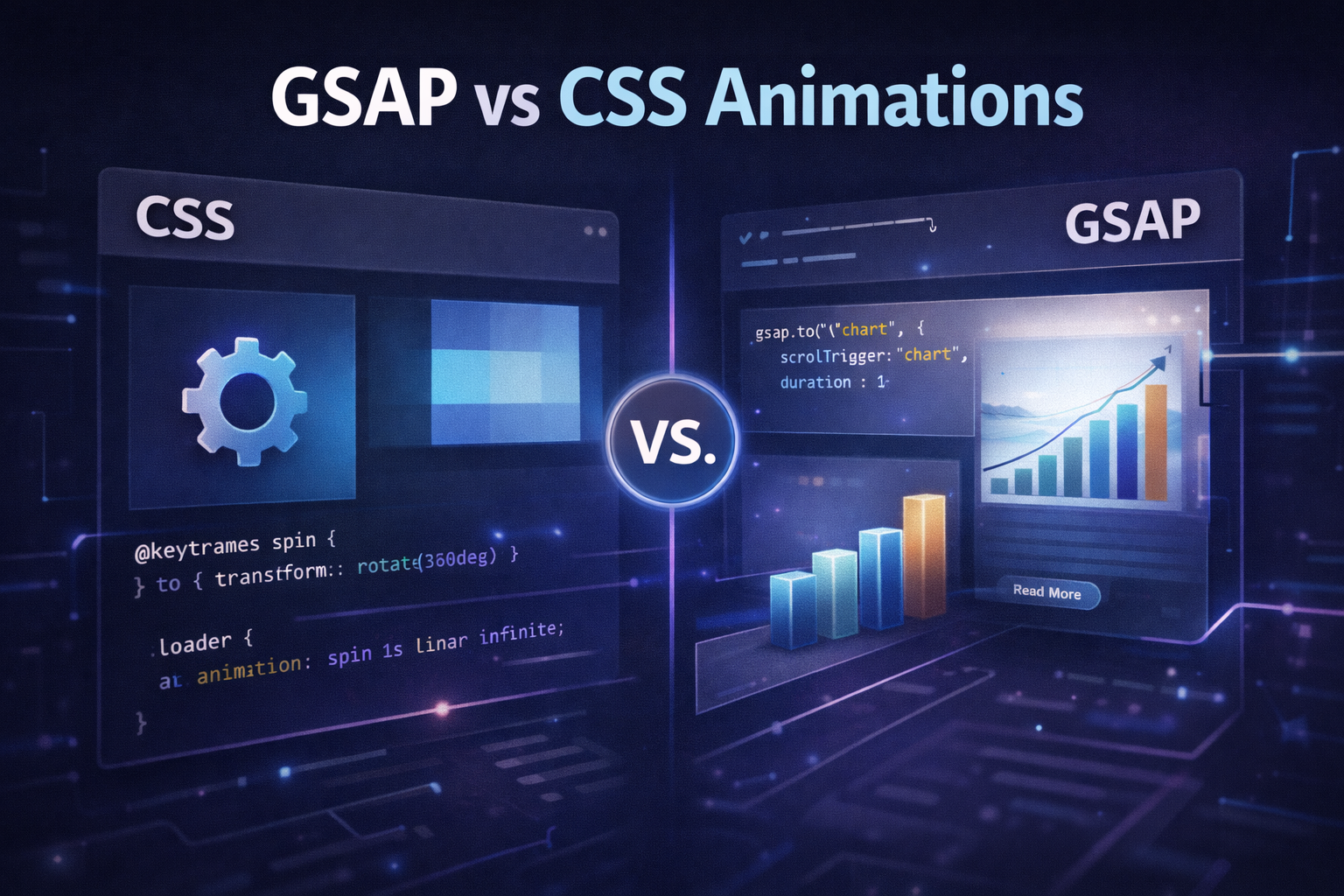
Unlike CSS animations, which are limited in what they can animate and how complex sequences can get, GSAP gives you a full timeline-based system. You can chain animations together, stagger them across multiple elements, reverse them, pause and resume them, and tie them to scroll position — all with a clean, readable JavaScript API.
GSAP is also genuinely fast. It uses hardware-accelerated transforms wherever possible and is optimized to avoid layout thrashing — the performance killer that makes many JavaScript animations feel janky. A well-built GSAP animation will run at 60 frames per second even on mid-range mobile devices.
It’s free for most use cases. The core library and most plugins including ScrollTrigger are completely free. The only paid features are a small set of premium plugins (like MorphSVG and SplitText) that are included in the GSAP Club membership.
Why Use GSAP Instead of CSS Animations?
CSS animations are perfectly suitable for simple transitions — hover states, button effects, basic fade-ins. But they hit their limits quickly when you need anything more sophisticated. Here’s where GSAP consistently outperforms CSS:
Complex sequencing. CSS has no native way to chain multiple animations so that one starts exactly when another finishes, or to orchestrate 20 elements animating in a specific sequence with precise timing between each. GSAP timelines make this trivial.
Scroll-based control. CSS scroll animations (the new @keyframes + scroll-timeline API) are still poorly supported and limited in capability. GSAP’s ScrollTrigger plugin gives you pixel-precise scroll control with full support across all modern browsers today.
JavaScript integration. CSS animations can’t easily respond to dynamic data, user input beyond hover, or application state. GSAP animations are JavaScript — they can respond to anything.
Performance. GSAP’s internal engine is more optimized than most CSS animation implementations in practice, particularly for complex multi-element sequences. It batches DOM reads and writes intelligently to avoid layout thrashing.
Reversibility and control. You can pause, resume, reverse, and seek to any point in a GSAP animation. CSS has no equivalent capability.
How to Add GSAP in WordPress
There are two clean ways to add GSAP to a WordPress site. The right method depends on whether you’re working in a custom theme or using a builder like Elementor.
Method 1 — Enqueue via functions.php (recommended for custom themes)
This is the proper WordPress way to load external scripts. Add this to your theme’s functions.php file:
function enqueue_gsap() {
    wp_enqueue_script(
        'gsap',
        'https://cdnjs.cloudflare.com/ajax/libs/gsap/3.12.2/gsap.min.js',
        array(),
        null,
        true
    );
    wp_enqueue_script(
        'gsap-scrolltrigger',
        'https://cdnjs.cloudflare.com/ajax/libs/gsap/3.12.2/ScrollTrigger.min.js',
        array('gsap'),
        null,
        true
    );
}
add_action('wp_enqueue_scripts', 'enqueue_gsap');
The true parameter at the end loads scripts in the footer, which is important for performance — it prevents GSAP from blocking page rendering.
Method 2 — CDN link directly in header (quick setup)
If you need to get started quickly or are testing, you can add the CDN link directly. In WordPress, go to Appearance → Theme File Editor → header.php and add these lines before the closing </head> tag:
<script src="https://cdnjs.cloudflare.com/ajax/libs/gsap/3.12.2/gsap.min.js"></script>
<script src="https://cdnjs.cloudflare.com/ajax/libs/gsap/3.12.2/ScrollTrigger.min.js"></script>
For production sites, always use Method 1 — it integrates properly with WordPress’s script loading system and respects dependencies.
Basic GSAP Animation Example
Once GSAP is loaded, you can start animating immediately. The core method is gsap.to() — it animates an element from its current state to the values you specify:
// Move an element 200px to the right over 1 second
gsap.to(".hero-title", {
    x: 200,
    duration: 1
});

// Fade in an element from invisible to fully visible
gsap.to(".section-content", {
    opacity: 1,
    duration: 0.8,
    ease: "power2.out"
});

// Animate from a starting state (gsap.from animates FROM the values you set TO the element's current state)
gsap.from(".hero-title", {
    y: 60,
    opacity: 0,
    duration: 1,
    ease: "power3.out"
});
The ease property controls the acceleration curve of the animation. power2.out starts fast and slows at the end — the most natural-feeling option for most entrance animations. power3.out is more dramatic. linear maintains constant speed throughout.
To stagger the same animation across multiple elements — for example, a list of cards that each fade in slightly after the previous one:
gsap.from(".card", {
    y: 40,
    opacity: 0,
    duration: 0.6,
    stagger: 0.15,
    ease: "power2.out"
});
Scroll Animations with ScrollTrigger
ScrollTrigger is the most powerful GSAP plugin and the reason most developers choose GSAP over CSS animations for modern websites. It lets you tie any animation to the scroll position — triggering it when an element enters the viewport, scrubbing through it as the user scrolls, or pinning an element in place while the animation plays.
First, register the plugin:
gsap.registerPlugin(ScrollTrigger);Basic scroll-triggered entrance animation:
gsap.from(".about-section", {
    scrollTrigger: {
        trigger: ".about-section",
        start: "top 80%",    // animation starts when top of element hits 80% down the viewport
        end: "top 30%",
        toggleActions: "play none none reverse"
    },
    y: 60,
    opacity: 0,
    duration: 0.9,
    ease: "power2.out"
});
Scrub animation — tied directly to scroll position:
gsap.to(".parallax-image", {
    scrollTrigger: {
        trigger: ".parallax-section",
        start: "top bottom",
        end: "bottom top",
        scrub: true    // animation progress matches scroll progress exactly
    },
    y: -100
});
Pinned section — element stays fixed while content animates:
gsap.to(".feature-list", {
    scrollTrigger: {
        trigger: ".features-section",
        start: "top top",
        end: "+=500",
        pin: true,
        scrub: 1
    },
    x: -300
});
The start and end values use a two-word syntax: the first word refers to a position on the trigger element, the second refers to a position in the viewport. "top 80%" means “when the top of the trigger element reaches 80% down from the top of the viewport.”
Using GSAP with Elementor
If you’re building with Elementor rather than a custom theme, you can still use GSAP — it just requires a slightly different approach since you don’t have direct access to the HTML structure.
The cleanest method is to add custom CSS classes to your Elementor elements via the Advanced tab → CSS Classes field. Once elements have classes, you can target them with GSAP exactly as you would in a custom build.
To add your GSAP JavaScript, use Elementor’s built-in custom code feature: go to Elementor → Custom Code → Add New, set the location to “Body End”, and write your GSAP code there. This ensures it loads after the DOM is ready and after your elements exist on the page.
// Example: animate all elements with class "gsap-fade-in" on scroll
gsap.registerPlugin(ScrollTrigger);

gsap.utils.toArray(".gsap-fade-in").forEach(element => {
    gsap.from(element, {
        scrollTrigger: {
            trigger: element,
            start: "top 85%",
            toggleActions: "play none none none"
        },
        y: 50,
        opacity: 0,
        duration: 0.8,
        ease: "power2.out"
    });
});
This pattern — using gsap.utils.toArray() with a forEach loop — lets you apply the same scroll animation to every element with a given class across the entire page, without writing separate code for each one.
Best Practices for GSAP in WordPress
Always initialize after DOM ready. Wrap your GSAP code in a DOMContentLoaded listener or place your scripts at the end of the body to ensure elements exist before you try to animate them:
document.addEventListener("DOMContentLoaded", function() {
    gsap.from(".hero-title", { y: 40, opacity: 0, duration: 1 });
});
Respect reduced motion preferences. Some users have vestibular disorders that make motion animations uncomfortable or disorienting. Always check for the prefers-reduced-motion media query:
const prefersReducedMotion = window.matchMedia("(prefers-reduced-motion: reduce)").matches;

if (!prefersReducedMotion) {
    gsap.from(".hero-title", { y: 40, opacity: 0, duration: 1 });
}
Don’t animate layout properties. Animating properties like width, height, top, left, margin, or padding forces the browser to recalculate layout on every frame — this is expensive and causes jank. Always use transform properties (x, y, scale, rotation) and opacity instead. These run on the GPU and don’t affect layout.
Kill ScrollTrigger instances on page transitions. If your WordPress theme uses page transitions or a JavaScript router, always call ScrollTrigger.killAll() before navigating to prevent memory leaks and animation conflicts on subsequent pages.
Test on real mobile devices. ScrollTrigger behaviour can differ on mobile due to browser-specific scroll implementations. Always test on actual iOS and Android devices, not just browser developer tools mobile simulation.
Is GSAP Good for SEO?
Yes — GSAP animations have no negative impact on SEO when implemented correctly. Google’s crawler doesn’t render JavaScript animations and doesn’t penalize sites for having them. The content of your pages is what gets indexed, and GSAP doesn’t affect your content.
The only scenario where GSAP could indirectly hurt SEO is if poorly implemented animations slow down your Core Web Vitals scores. Animations that cause Cumulative Layout Shift (CLS) — where content moves around after the page loads — will hurt your rankings. The fix is to always set explicit dimensions on animated elements and use opacity: 0 as the starting state rather than display none, so the browser reserves space for elements before they animate in.
A properly implemented GSAP site can actually improve SEO metrics indirectly — lower bounce rates, higher time on page, and more pages per session are all signals Google considers, and good animations contribute to all three by making the browsing experience more engaging.
Common GSAP Animation Patterns Worth Implementing
Here are the most effective patterns for business websites specifically — animations that improve user experience and engagement without being distracting:
Fade-up on scroll — the most universally effective entrance animation. Every section fades in and moves up slightly as it enters the viewport. Subtle, professional, and widely expected on modern sites.
Staggered card reveals — when you have a grid of services, team members, or case studies, staggering the entrance of each card (0.1–0.15 second delay between each) makes the grid feel dynamic rather than static.
Text split animations — revealing headline text word by word or line by line creates a premium feel on hero sections. Requires the SplitText plugin (paid) or a manual split implementation.
Counter animations — animating numbers counting up when a stats section enters the viewport makes achievement figures feel more impactful and encourages visitors to pause and read them.
Horizontal scroll sections — using ScrollTrigger’s pin and scrub features to create a horizontal scroll section within an otherwise vertical page is an effective way to showcase portfolio items or feature lists in a memorable format.
Conclusion
GSAP is the most capable animation tool available for web development, and WordPress makes it straightforward to implement once you understand the correct loading method and follow the best practices around performance and accessibility.
Start with simple entrance animations using gsap.from() and ScrollTrigger. Once those feel solid, experiment with timelines and stagger effects. The learning curve is gentle and the results are immediately visible — a site with well-implemented GSAP animations feels fundamentally more professional than one without.
If you want a WordPress website with custom GSAP animations built in from the ground up — scroll effects, hero animations, and interactive elements that actually perform well on mobile — that’s exactly what we build at Webvio.
Book a free 30-minute call and let’s talk about what’s possible for your site →